> ## Documentation Index
> Fetch the complete documentation index at: https://docs.p2w.lol/llms.txt
> Use this file to discover all available pages before exploring further.
# Auto Responders
Automatically respond to trigger messages.
## Creating an auto responder
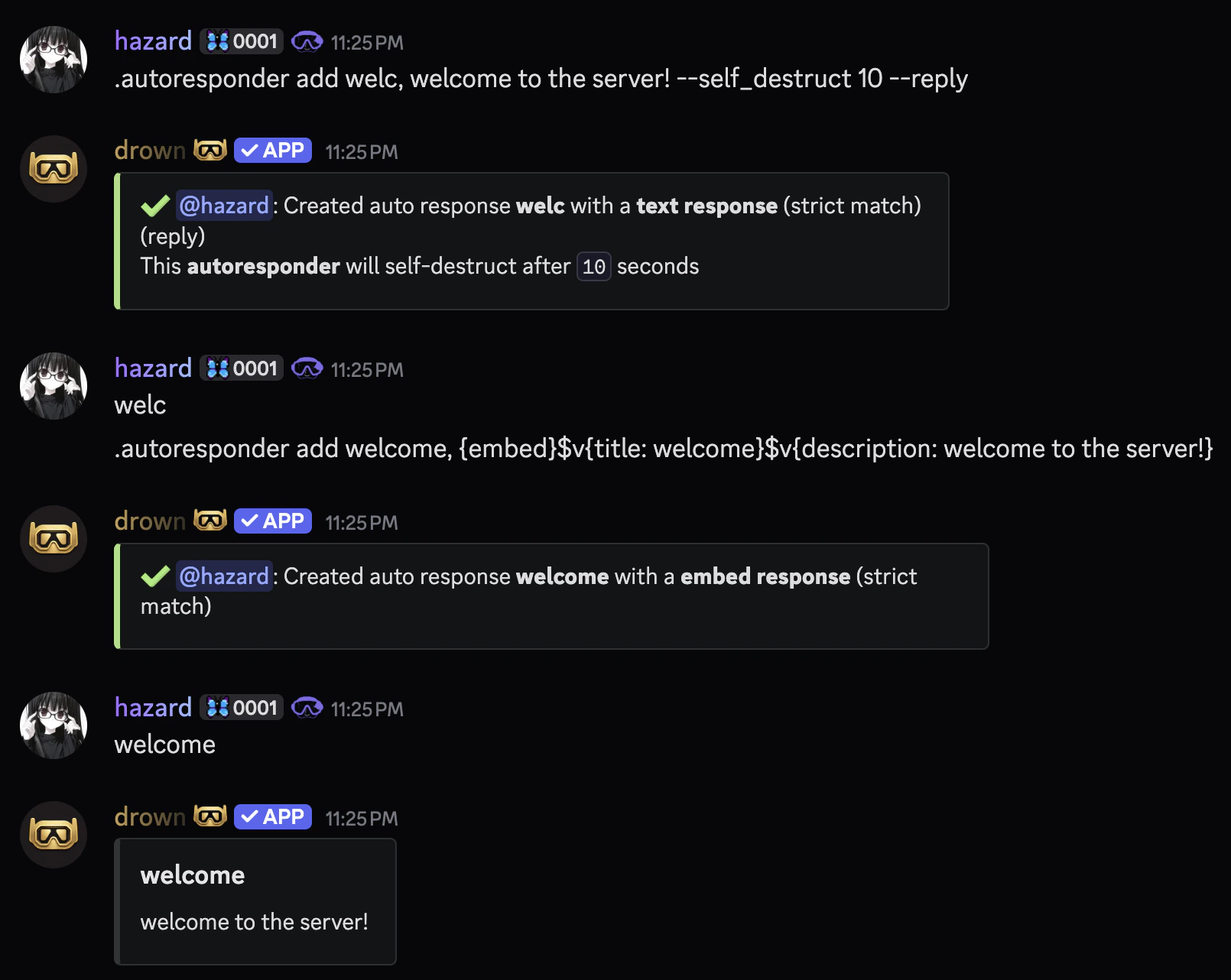
You can create an auto responder with the `autoresponder add` command.
The **trigger** and **response** must be separated by a comma (`,`).
The `message` parameter can be raw text or an **embed** with dynamic **variables**.
```typescript Syntax theme={null}
.autoresponder add (trigger, response) [--flags]
```
```typescript Example theme={null}
.autoresponder add welc, welcome to the server!
.autoresponder add welc, {embed}$v{title: welcome}$v{description: welcome to the server!}
```
```typescript Example with flags theme={null}
.autoresponder add welc, welcome to the server! --self_destruct 10 --reply
.autoresponder add ,welc, welcome to the server! --not_strict --ignore_command_check
```
 ### Available flags
The following flags can be used to customize the response
The `--not_strict` flag will search for the trigger anywhere in the message. For example, if the trigger is `hello`, it will respond to `hello there`.
The `--self_destruct` flag schedules the response for deletion after a specified time, which must be between `6` and `60` seconds.
The `--delete` flag will delete the trigger message after the response is sent.
The `--reply` flag will reply to the trigger message.
The `--ignore_command_check` flag will allow the responder to trigger even if it’s a pre-existing command.
## Removing an auto responder
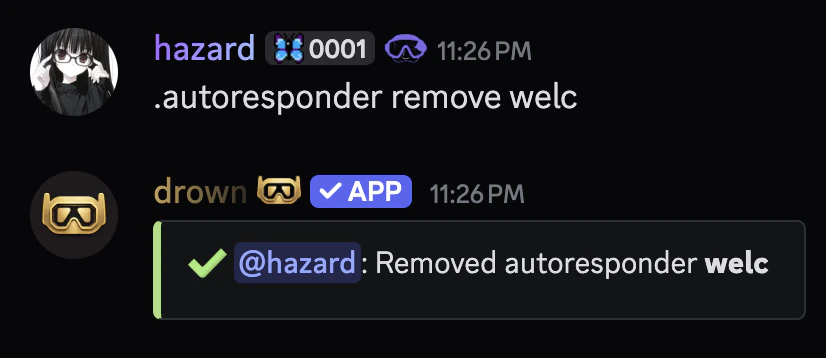
You can remove an auto responder with the `autoresponder remove` command.
```typescript Syntax theme={null}
.autoresponder remove (trigger)
```
```typescript Example theme={null}
.autoresponder remove welc
```
### Available flags
The following flags can be used to customize the response
The `--not_strict` flag will search for the trigger anywhere in the message. For example, if the trigger is `hello`, it will respond to `hello there`.
The `--self_destruct` flag schedules the response for deletion after a specified time, which must be between `6` and `60` seconds.
The `--delete` flag will delete the trigger message after the response is sent.
The `--reply` flag will reply to the trigger message.
The `--ignore_command_check` flag will allow the responder to trigger even if it’s a pre-existing command.
## Removing an auto responder
You can remove an auto responder with the `autoresponder remove` command.
```typescript Syntax theme={null}
.autoresponder remove (trigger)
```
```typescript Example theme={null}
.autoresponder remove welc
```
 ## Restricting auto responders
### Restricting to a channel or role
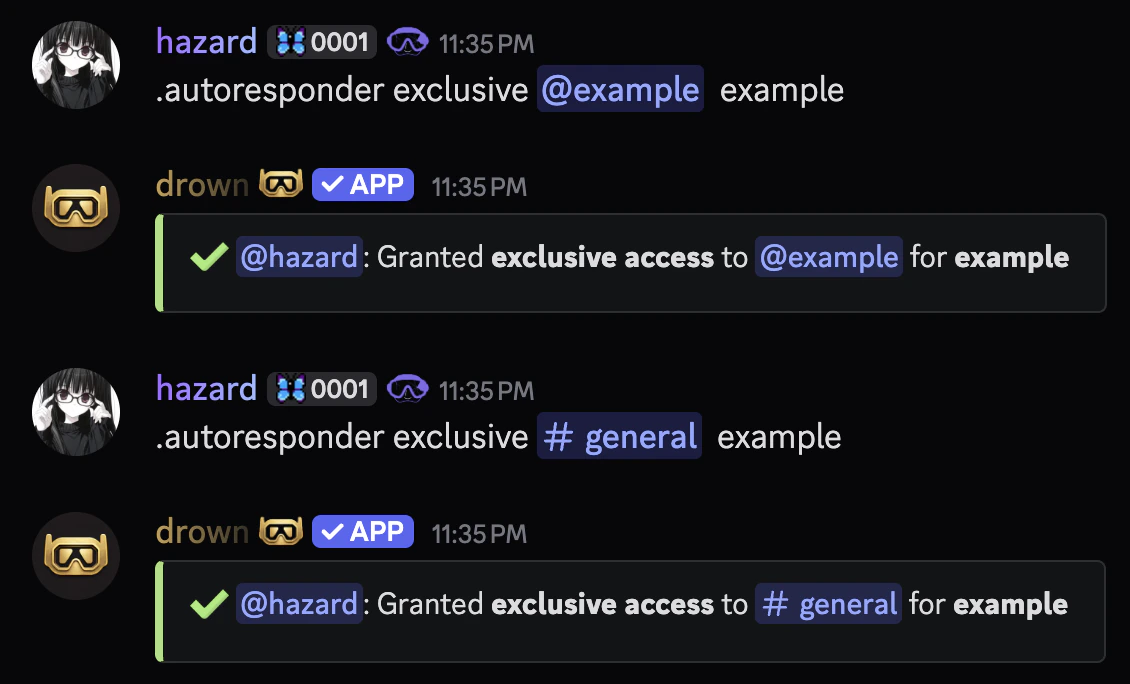
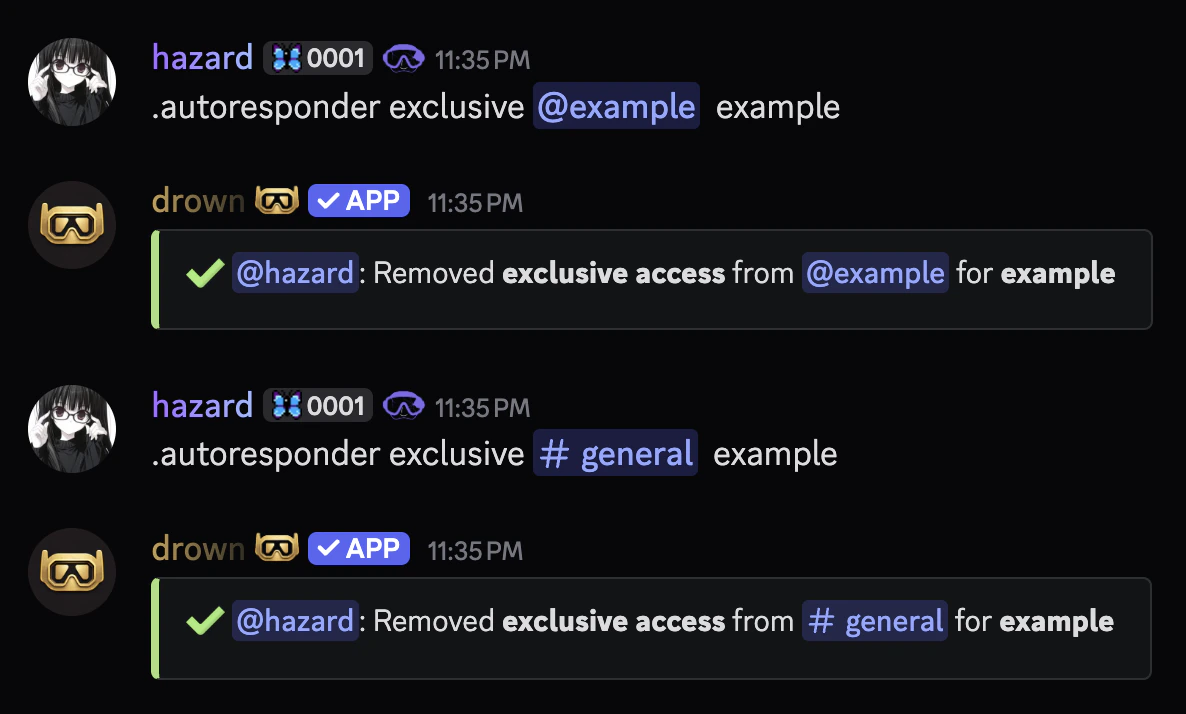
Toggle exclusive access for an autoresponder to a role or channel with the `autoresponder exclusive` command
```typescript Syntax theme={null}
.autoresponder exclusive (role or channel) (trigger)
```
```typescript Example theme={null}
.autoresponder exclusive #general lifetime
```
## Restricting auto responders
### Restricting to a channel or role
Toggle exclusive access for an autoresponder to a role or channel with the `autoresponder exclusive` command
```typescript Syntax theme={null}
.autoresponder exclusive (role or channel) (trigger)
```
```typescript Example theme={null}
.autoresponder exclusive #general lifetime
```
 ## Auto Responder Roles
Autoresponder roles are roles that are assigned or removed to members when they say a specific message.
It’s easy to confuse these commands! Running the `add` command again would undo the functionality of giving members roles.
```typescript Syntax theme={null}
.autoresponder role (add or remove) (role) (trigger)
```
```typescript Example theme={null}
.autoresponder role add Verified Verify
```
## Auto Responder Roles
Autoresponder roles are roles that are assigned or removed to members when they say a specific message.
It’s easy to confuse these commands! Running the `add` command again would undo the functionality of giving members roles.
```typescript Syntax theme={null}
.autoresponder role (add or remove) (role) (trigger)
```
```typescript Example theme={null}
.autoresponder role add Verified Verify
```
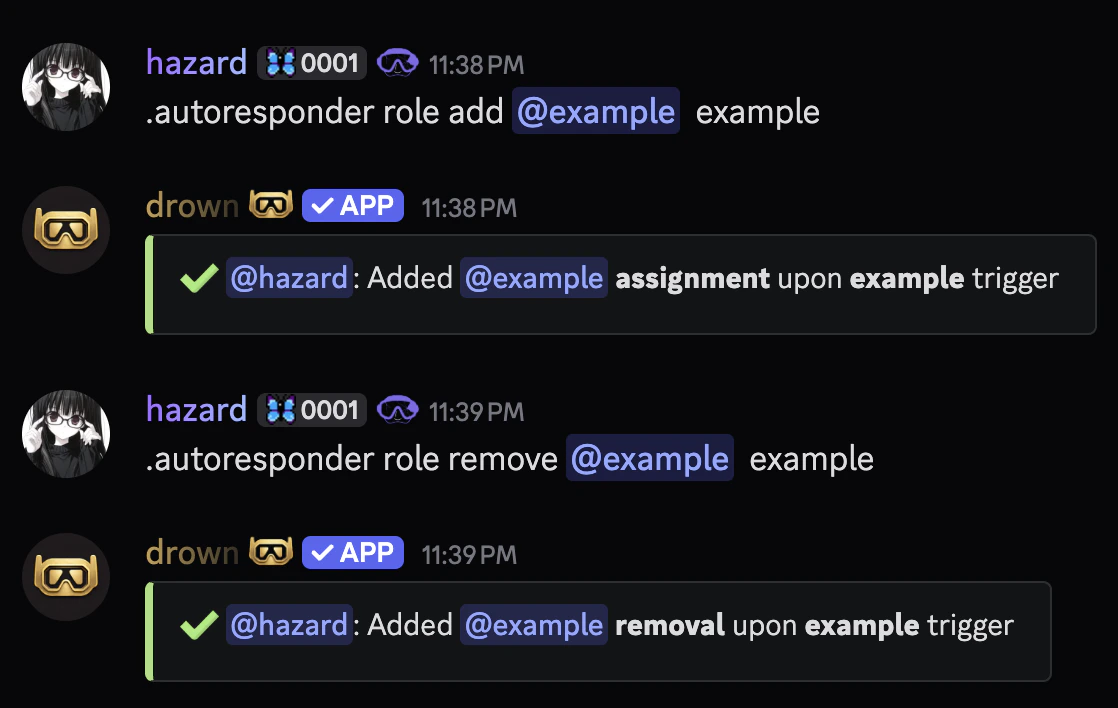 ### Removing an autoresponder rule
You can remove an autoresponder role by running the same command again. This action will reverse the previous configuration and remove the assignment or removals of the role
## Related commands
You can use the `autoresponder update` command to update an auto responder.
This command uses the same syntax as the `autoresponder add` command.
You can use the `autoresponder reset` command to remove all auto responders.
You can use the `autoresponder list` command to view all auto responders.
### Removing an autoresponder rule
You can remove an autoresponder role by running the same command again. This action will reverse the previous configuration and remove the assignment or removals of the role
## Related commands
You can use the `autoresponder update` command to update an auto responder.
This command uses the same syntax as the `autoresponder add` command.
You can use the `autoresponder reset` command to remove all auto responders.
You can use the `autoresponder list` command to view all auto responders.