> ## Documentation Index
> Fetch the complete documentation index at: https://docs.p2w.lol/llms.txt
> Use this file to discover all available pages before exploring further.
# VoiceMaster
> Create temporary voice channels which can be customized to your liking.
## Getting started
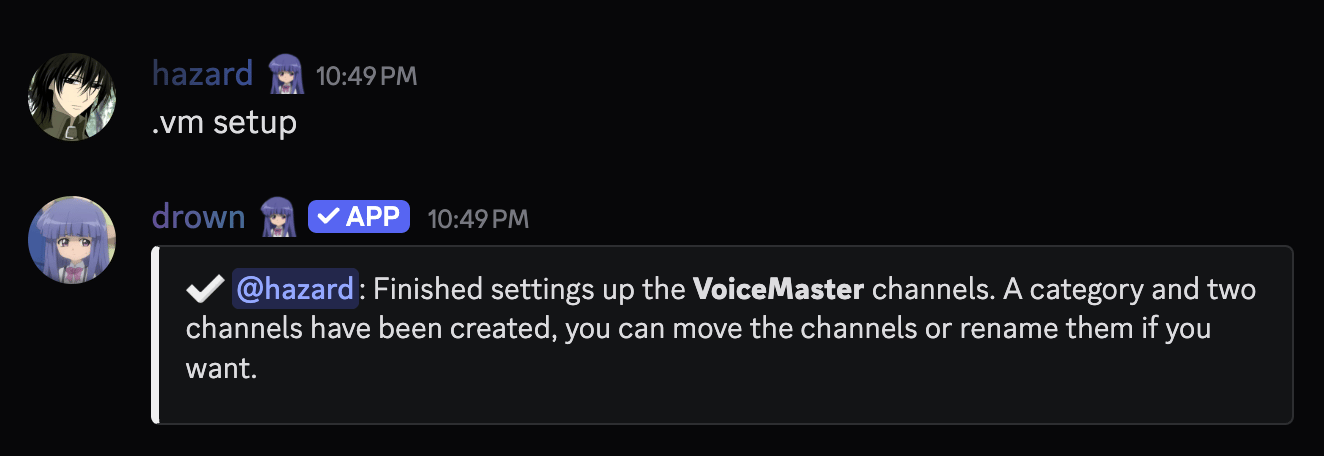
The first step to using **VoiceMaster** is to use the `voicemaster setup` command.
The created channels can be moved and renamed to your liking.
```typescript Syntax theme={null}
.voicemaster setup
```
```typescript Example theme={null}
.voicemaster setup
```
 ***
## What is the interface channel?
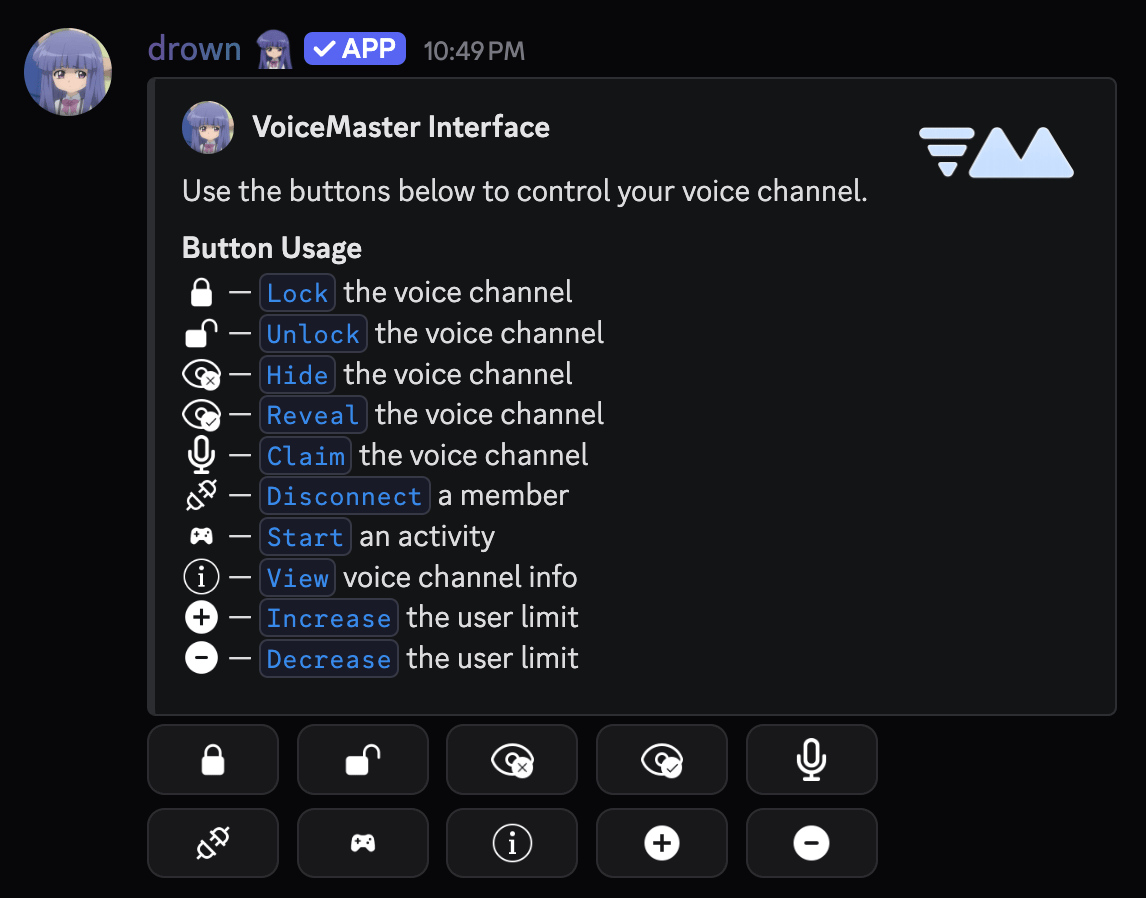
The `#interface` channel will contain an embed with buttons that allow members to customize their temporary voice channel. This channel should be locked to keep the embed message at the top of the channel.
***
## What is the interface channel?
The `#interface` channel will contain an embed with buttons that allow members to customize their temporary voice channel. This channel should be locked to keep the embed message at the top of the channel.
 ***
## What is the Join to Create channel?
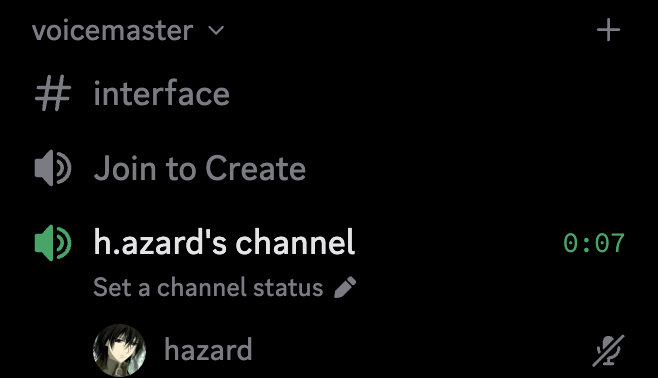
The **Join to Create** channel is where members will join to create their temporary voice channel. This channel is required for the **VoiceMaster** system to work.
***
## What is the Join to Create channel?
The **Join to Create** channel is where members will join to create their temporary voice channel. This channel is required for the **VoiceMaster** system to work.
 ***
## Customizing new voice channels
You can customize what the temporary voice channels look like when they're created.
The following commands are subcommands of the `voicemaster default` command.
Redirect voice channels to a specific category.
```typescript Syntax theme={null}
.voicemaster category (category)
```
```typescript Example theme={null}
.voicemaster category Voice Channels
```
Set the default name for temporary voice channels when they are created.
The name can use the `{user}`, `{user.name}` and `{user.display_name}` variables.
```typescript Syntax theme={null}
.voicemaster default name (name)
```
```typescript Example theme={null}
.voicemaster default name {user.name}'s channel
.voicemaster default name {user.display_name}'s vc
```
Set the default bitrate for temporary voice channels.
The bitrate must be between `8` and `384`.
```typescript Syntax theme={null}
.voicemaster default bitrate (kbps)
```
```typescript Example theme={null}
.voicemaster default bitrate 96
```
Set the default region for temporary voice channels.
The region must be one of the following: `brazil`, `hongkong`, `india`, `japan`, `rotterdam`, `russia`, `singapore`, `south-korea`, `southafrica`, `sydney`, `us-central`, `us-east`, `us-south`, `us-west`
```typescript Syntax theme={null}
.voicemaster default region (region)
```
```typescript Example theme={null}
.voicemaster default region us-east
```
***
## Granting a role to members
You can assign a role that members receive when they join a temporary voice channel, which is automatically removed when they leave. This is helpful if you want your `#interface` channel to be visible only to members currently in a temporary voice channel.
```typescript Syntax theme={null}
.voicemaster join role (role)
```
```typescript Example theme={null}
.voicemaster join role @VoiceMaster
```
***
## Setting up the permissions
If you're interested in making your `#interface` channel only visible to members inside a temporary voice channel, you would need to set the permissions accordingly.
* Create a role named **VoiceMaster** (or whatever you prefer) and set it with `.voicemaster join role @VoiceMaster`
* In your `#interface` channel settings, deny **View Channel** for `@everyone`
* In your `#interface` channel settings, allow **View Channel** for the **VoiceMaster** role
Members will automatically receive the **VoiceMaster** role when they join a temp VC and lose it when they leave, so only active VC members will see the interface channel.
***
## Customizing the interface
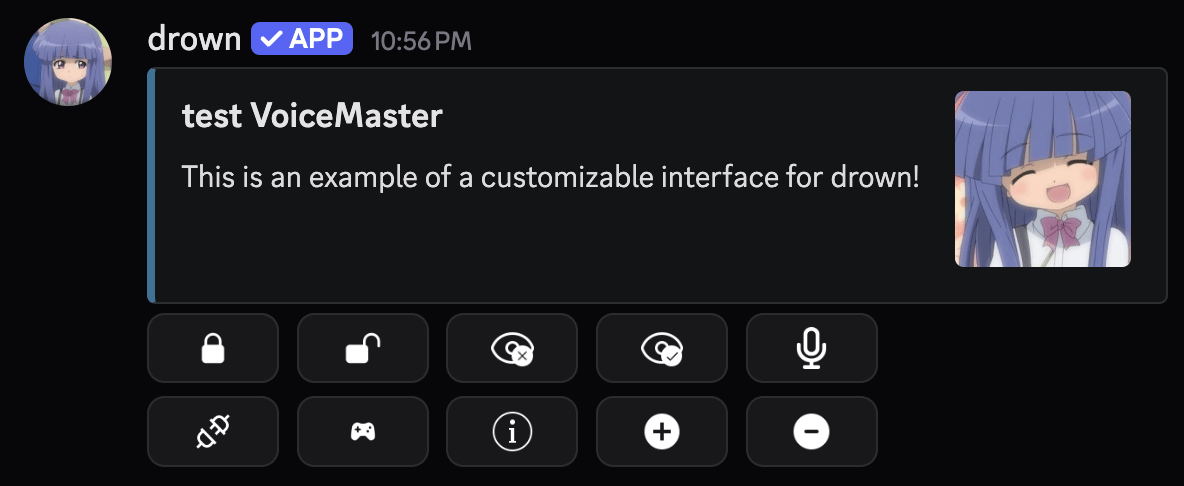
You can set a custom embed for your `#interface` channel using the `voicemaster sendinterface` command with an embed script.
You can use the following variables in your script, each one will be substituted with its corresponding button icon: `{lock}`, `{unlock}`, `{hide}`, `{reveal}`, `{claim}`, `{increase}`, `{decrease}`, `{information}`
Running the command without a script will simply resend the current interface (useful if the channel gets cluttered).
```typescript Syntax theme={null}
.voicemaster sendinterface
```
```typescript Example theme={null}
.voicemaster sendinterface
.voicemaster interface {embed}{color: #3d7292}$v{title: {guild.name} VoiceMaster}$v{description: This is an example of a customizable interface for drown}$v{thumbnail: {guild.icon}}
```
***
## Customizing new voice channels
You can customize what the temporary voice channels look like when they're created.
The following commands are subcommands of the `voicemaster default` command.
Redirect voice channels to a specific category.
```typescript Syntax theme={null}
.voicemaster category (category)
```
```typescript Example theme={null}
.voicemaster category Voice Channels
```
Set the default name for temporary voice channels when they are created.
The name can use the `{user}`, `{user.name}` and `{user.display_name}` variables.
```typescript Syntax theme={null}
.voicemaster default name (name)
```
```typescript Example theme={null}
.voicemaster default name {user.name}'s channel
.voicemaster default name {user.display_name}'s vc
```
Set the default bitrate for temporary voice channels.
The bitrate must be between `8` and `384`.
```typescript Syntax theme={null}
.voicemaster default bitrate (kbps)
```
```typescript Example theme={null}
.voicemaster default bitrate 96
```
Set the default region for temporary voice channels.
The region must be one of the following: `brazil`, `hongkong`, `india`, `japan`, `rotterdam`, `russia`, `singapore`, `south-korea`, `southafrica`, `sydney`, `us-central`, `us-east`, `us-south`, `us-west`
```typescript Syntax theme={null}
.voicemaster default region (region)
```
```typescript Example theme={null}
.voicemaster default region us-east
```
***
## Granting a role to members
You can assign a role that members receive when they join a temporary voice channel, which is automatically removed when they leave. This is helpful if you want your `#interface` channel to be visible only to members currently in a temporary voice channel.
```typescript Syntax theme={null}
.voicemaster join role (role)
```
```typescript Example theme={null}
.voicemaster join role @VoiceMaster
```
***
## Setting up the permissions
If you're interested in making your `#interface` channel only visible to members inside a temporary voice channel, you would need to set the permissions accordingly.
* Create a role named **VoiceMaster** (or whatever you prefer) and set it with `.voicemaster join role @VoiceMaster`
* In your `#interface` channel settings, deny **View Channel** for `@everyone`
* In your `#interface` channel settings, allow **View Channel** for the **VoiceMaster** role
Members will automatically receive the **VoiceMaster** role when they join a temp VC and lose it when they leave, so only active VC members will see the interface channel.
***
## Customizing the interface
You can set a custom embed for your `#interface` channel using the `voicemaster sendinterface` command with an embed script.
You can use the following variables in your script, each one will be substituted with its corresponding button icon: `{lock}`, `{unlock}`, `{hide}`, `{reveal}`, `{claim}`, `{increase}`, `{decrease}`, `{information}`
Running the command without a script will simply resend the current interface (useful if the channel gets cluttered).
```typescript Syntax theme={null}
.voicemaster sendinterface
```
```typescript Example theme={null}
.voicemaster sendinterface
.voicemaster interface {embed}{color: #3d7292}$v{title: {guild.name} VoiceMaster}$v{description: This is an example of a customizable interface for drown}$v{thumbnail: {guild.icon}}
```
 ***
## Customizing your voice channel
The following commands can be done via the `#interface` channel buttons or as direct commands.
### Renaming your voice channel
You can use the `voicemaster rename` command to change the name of your voice channel.
This command can only be used **once every 10 minutes** due to Discord's channel rename rate limit.
```typescript Syntax theme={null}
.voicemaster rename (name)
```
```typescript Example theme={null}
.voicemaster rename late night vibes
```
### Limiting the number of members
You can use the `voicemaster limit` command to set a limit on the number of members that can join your voice channel.
```typescript Syntax theme={null}
.voicemaster limit (number)
```
```typescript Example theme={null}
.voicemaster limit 5
```
### Making your voice channel private
You can lock and hide your voice channel with the following commands.
* `voicemaster lock` — Prevents anyone from joining the voice channel
* `voicemaster unlock` — Allows anyone to join the voice channel
* `voicemaster ghost` — Hides the voice channel from the channel list
* `voicemaster unghost` — Reveals the voice channel in the channel list
### Permitting members to join
You can use the `voicemaster permit` command to allow specific members or roles to join your voice channel.
```typescript Syntax theme={null}
.voicemaster permit (member or role)
```
```typescript Example theme={null}
.voicemaster permit @h.azard
.voicemaster permit @Friends
```
### Granting a role to members in your voice channel
You can use the `voicemaster role` command to set a role that members will receive when they join your voice channel.
You must have the **Manage Roles** permission to use this command.
```typescript Syntax theme={null}
.voicemaster role (role)
```
```typescript Example theme={null}
.voicemaster role @In VC
```
## Related commands
If the owner of a voice channel leaves, you can use the `voicemaster claim` command to take ownership of the voice channel.
```typescript Syntax theme={null}
.voicemaster claim
```
You can use the `voicemaster transfer` command to transfer ownership of a voice channel to another member.
```typescript Syntax theme={null}
.voicemaster transfer (member)
```
```typescript Example theme={null}
.voicemaster transfer @h.azard
```
You can use the `voicemaster music` command which will prevent members from speaking in the voice channel, making it music-only.
```typescript Syntax theme={null}
.voicemaster music (on or off)
```
```typescript Example theme={null}
.voicemaster music on
.voicemaster music off
```
***
## Customizing your voice channel
The following commands can be done via the `#interface` channel buttons or as direct commands.
### Renaming your voice channel
You can use the `voicemaster rename` command to change the name of your voice channel.
This command can only be used **once every 10 minutes** due to Discord's channel rename rate limit.
```typescript Syntax theme={null}
.voicemaster rename (name)
```
```typescript Example theme={null}
.voicemaster rename late night vibes
```
### Limiting the number of members
You can use the `voicemaster limit` command to set a limit on the number of members that can join your voice channel.
```typescript Syntax theme={null}
.voicemaster limit (number)
```
```typescript Example theme={null}
.voicemaster limit 5
```
### Making your voice channel private
You can lock and hide your voice channel with the following commands.
* `voicemaster lock` — Prevents anyone from joining the voice channel
* `voicemaster unlock` — Allows anyone to join the voice channel
* `voicemaster ghost` — Hides the voice channel from the channel list
* `voicemaster unghost` — Reveals the voice channel in the channel list
### Permitting members to join
You can use the `voicemaster permit` command to allow specific members or roles to join your voice channel.
```typescript Syntax theme={null}
.voicemaster permit (member or role)
```
```typescript Example theme={null}
.voicemaster permit @h.azard
.voicemaster permit @Friends
```
### Granting a role to members in your voice channel
You can use the `voicemaster role` command to set a role that members will receive when they join your voice channel.
You must have the **Manage Roles** permission to use this command.
```typescript Syntax theme={null}
.voicemaster role (role)
```
```typescript Example theme={null}
.voicemaster role @In VC
```
## Related commands
If the owner of a voice channel leaves, you can use the `voicemaster claim` command to take ownership of the voice channel.
```typescript Syntax theme={null}
.voicemaster claim
```
You can use the `voicemaster transfer` command to transfer ownership of a voice channel to another member.
```typescript Syntax theme={null}
.voicemaster transfer (member)
```
```typescript Example theme={null}
.voicemaster transfer @h.azard
```
You can use the `voicemaster music` command which will prevent members from speaking in the voice channel, making it music-only.
```typescript Syntax theme={null}
.voicemaster music (on or off)
```
```typescript Example theme={null}
.voicemaster music on
.voicemaster music off
```